WOLF - WordPress Posts Bulk Editor and Manager Professional
MCP Server for WordPress: AI assistant for your posts
You need every villa five percent dearer, the draft placeholders cleared out of Services, a new blog post with its photo and a CSV of the apartments for an agent. In the admin that is four filters, four careful looks at what they caught, and four chances to select the whole post type by mistake.
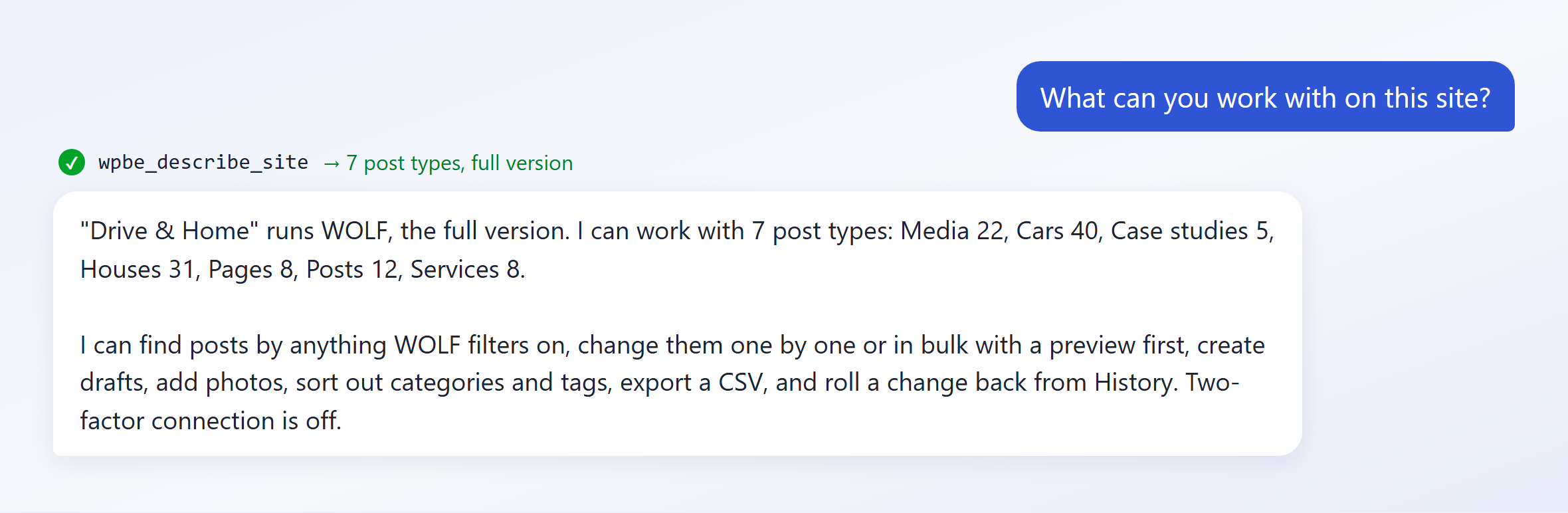
WOLF now ships an MCP server for WordPress, so you can bulk edit WordPress posts with AI. Connect an AI assistant to your site once and each of those jobs becomes a sentence — with a preview before anything is written and a rollback if it wasn't what you meant. The assistant works with your posts, pages, custom post types and media the same way the WOLF screen does, through the same filters and the same history.
You don't have to open the editor at all.
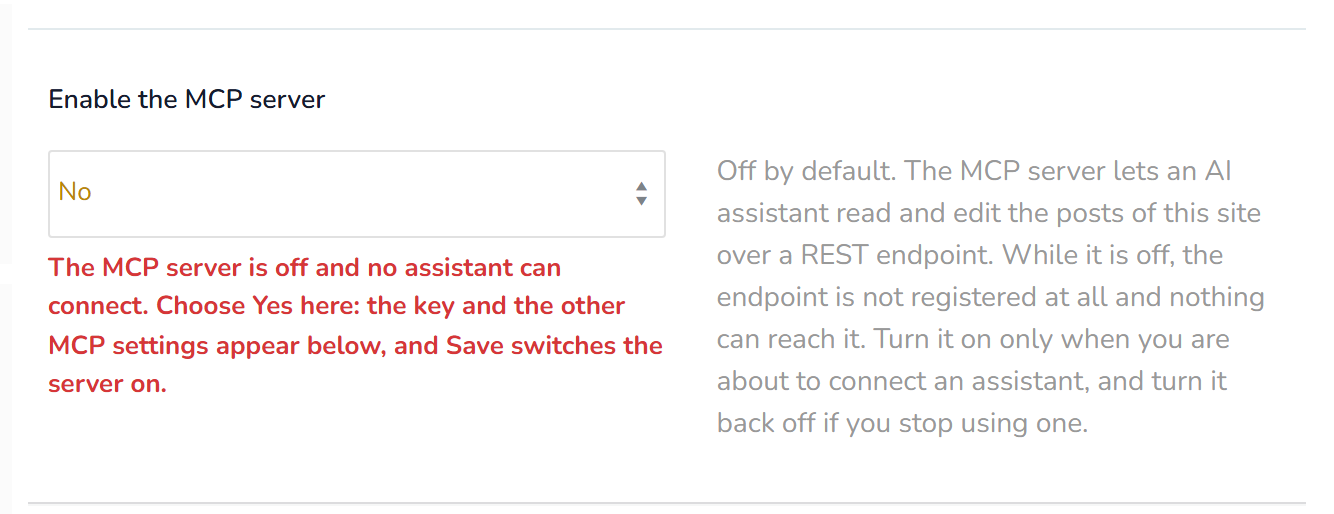
The MCP server is off until you switch it on. A new install carries no endpoint at all: open WOLF Bulk Editor → Settings, set Enable the MCP server to Yes and save. Until then nothing answers at the address, with or without a key — the note under the switch says so in red.
For extra safety there is MCP two-factor connection. With it on, the key alone is not enough: every assistant session also needs a token that you confirm yourself in the plugin settings, and the session closes on its own after an hour of silence. It is optional, off by default, and recommended. How it works is described below.
What an AI assistant can do with your WordPress posts
WOLF has always been a bulk editor for WordPress posts, and that is still the point. The connection gives it a voice: you describe the job, the assistant runs it through WOLF.
Bulk edit posts, pages and custom post types
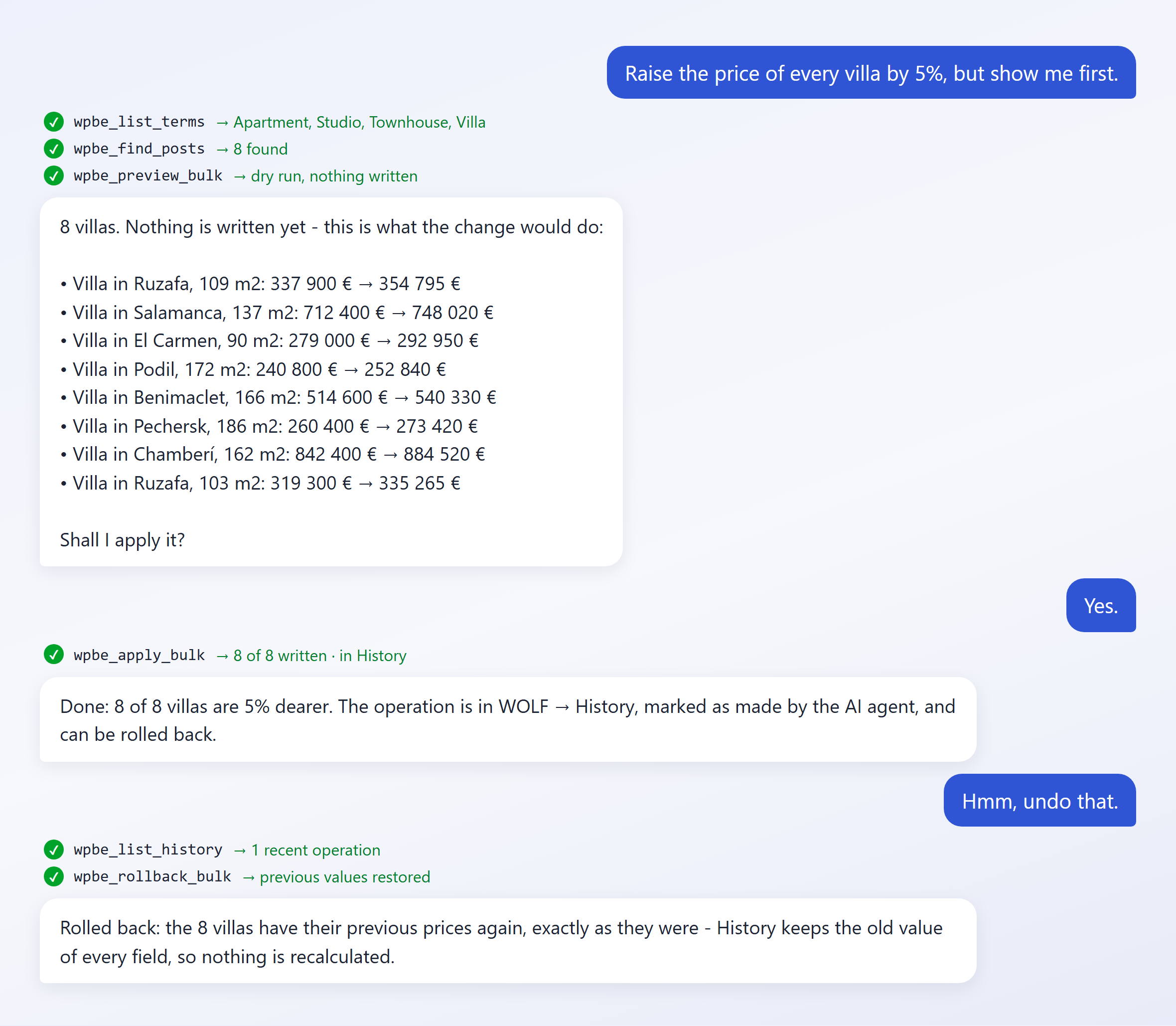
Filter and change, in the same breath. Raise the price of every villa by 5%.Publish all drafts in Guides.Move every post tagged "news-2024" into the Archive category.Append " — Drive & Home" to the titles of all service pages.
Every one of those is a filter plus a bulk operation, the same two steps you already do on the Bulk Edit tab. What changes is that you describe them instead of clicking them, and that WOLF checks the work before it writes.
It works on whatever post types WOLF shows on its own screen: posts, pages, media, and the custom types your theme or plugins register — listings, cars, events, case studies. Meta fields you added on the Meta Fields tab are fields like any other: a price, an area, a reference number, an energy class.
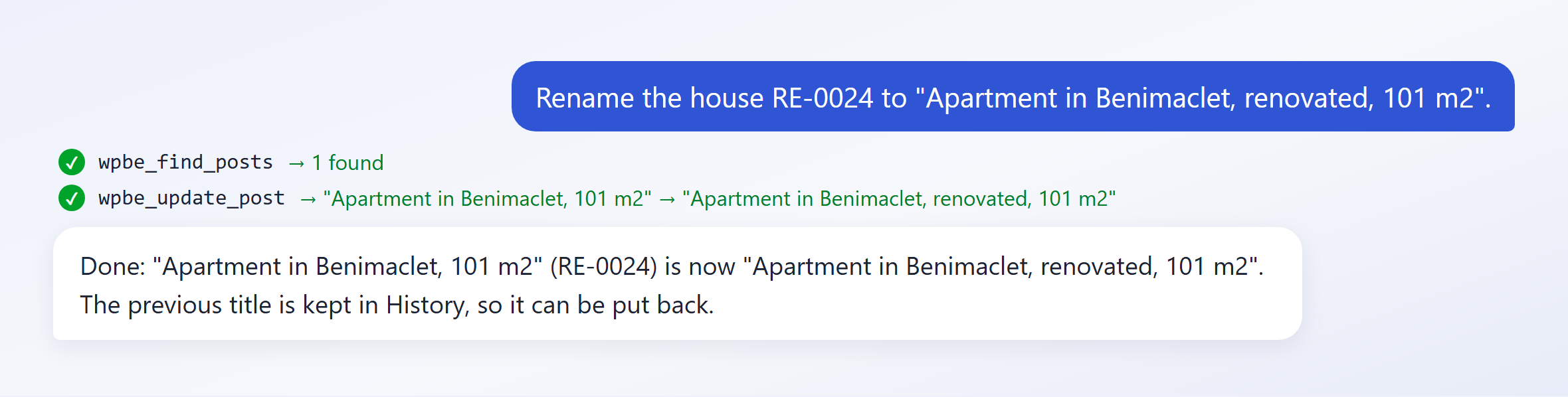
Not everything is a bulk job. Rename RE-0024 to "Apartment in Benimaclet, renovated".Set the date of post 812 to Monday. A single correction is one sentence and one change, and it lands in WOLF's History with its previous value, the same as an edit made by hand in the table.
The whole WOLF filter, in plain words
The filter is the one on the Filters tab, not a shortlist. Titles and content by text, any taxonomy (with AND, OR and NOT), your meta fields as text or number ranges, dates, status, author, parent, menu order, posts with or without a featured image — and combinations of them. Apartments in Ruzafa or El Carmen under 600 000.Drafts older than June without an image.Pages whose parent is "Services". If you can describe it, it goes into the same filter engine the screen uses, so the result is exactly what you would have got by clicking.
Create posts as drafts
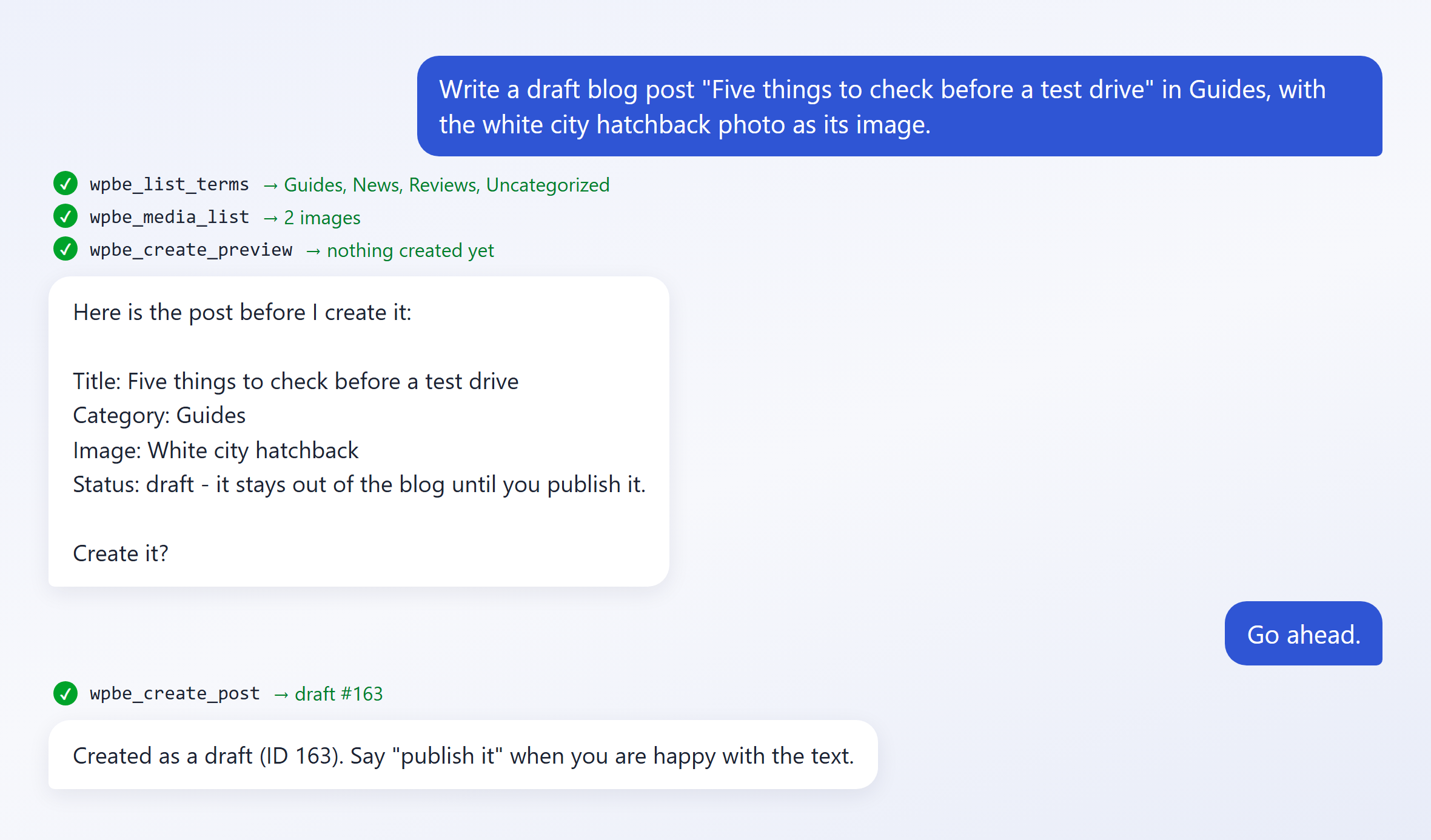
A blog post, a page, a new listing — with its categories and tags, meta fields and featured image. You see the post first, with every value checked, and it is always created as a draft: it isn't on the site until you say Publish it.
Photos straight from your computer
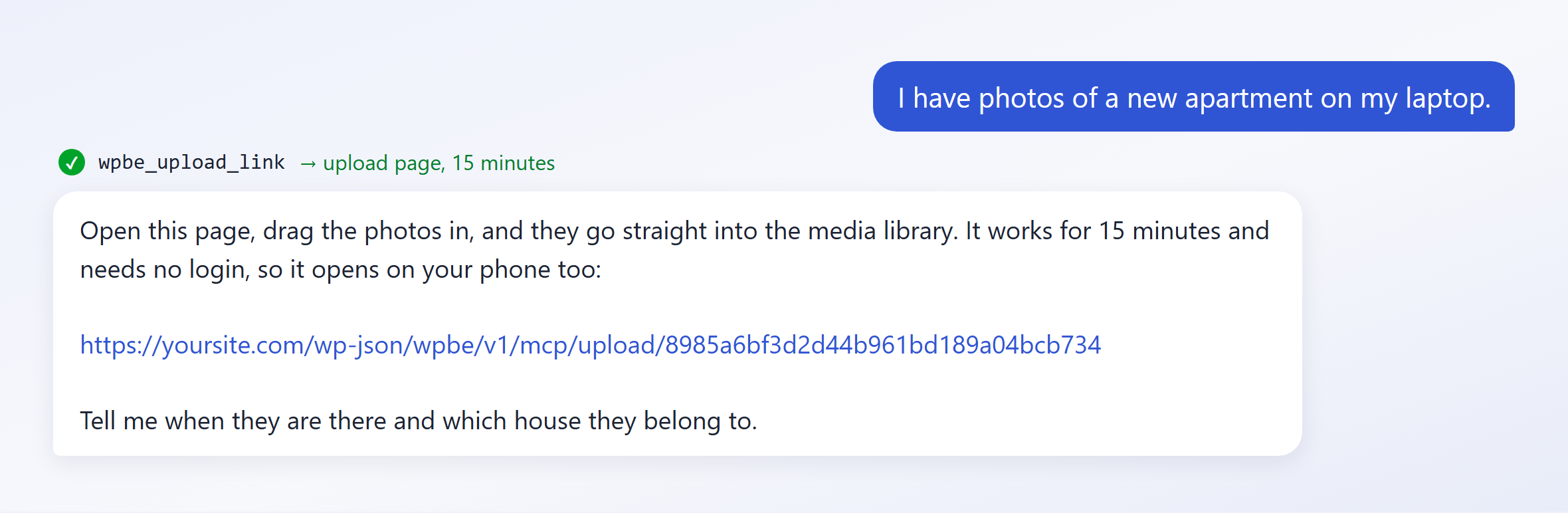
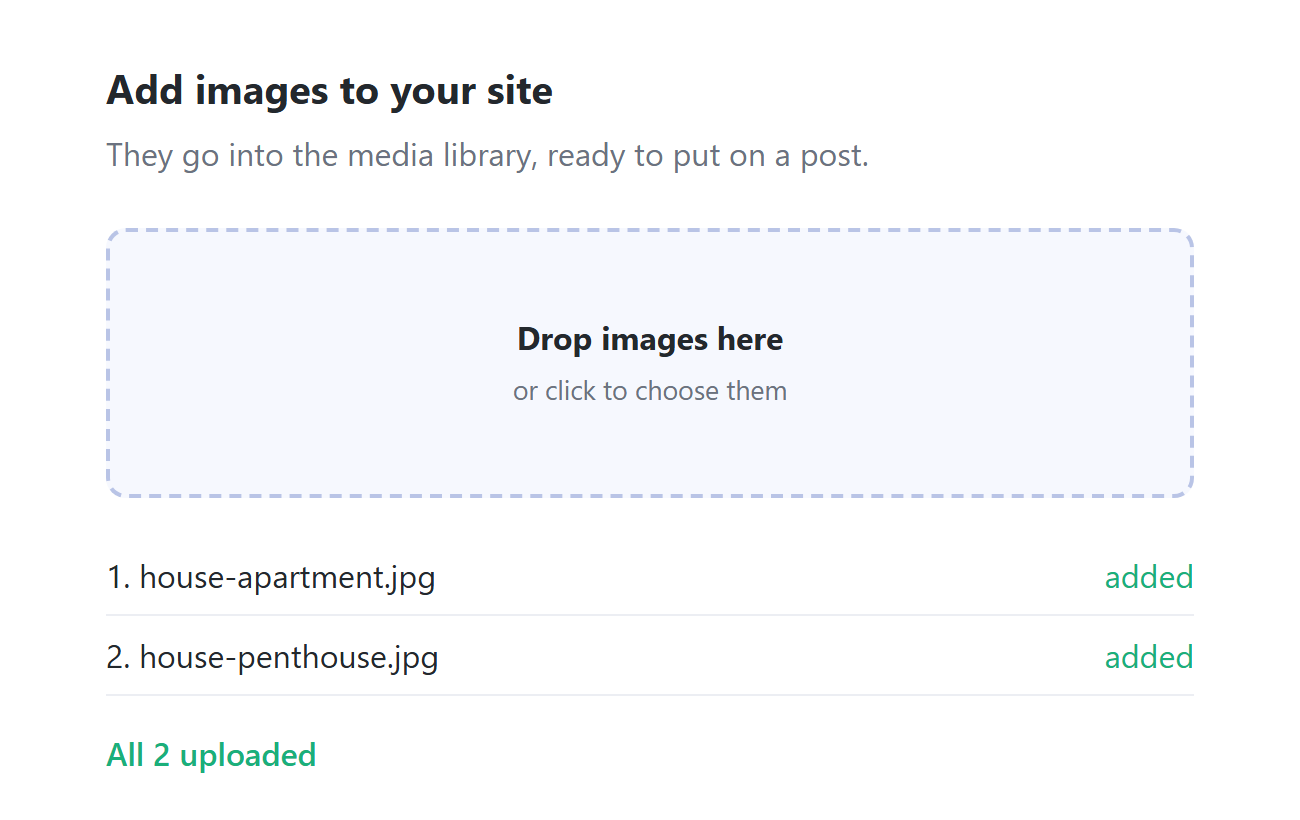
A picture pasted into a chat can't reach your site: the assistant sees an image, not a file. So WOLF gives you a page for it. Ask to add photos and the assistant hands you a link. Open it, drag the files in, and they land in the media library. The link works for fifteen minutes and needs no login, so it opens on your phone just as well.
Photos already online, on a supplier's page or a CDN, are imported by link. The assistant can browse the media library, tell you which posts already use an image, and set or remove the featured image of a post.
Categories, tags and custom taxonomies
New terms, renamed or moved under another parent, removed. Add "Sea view" and "Garage" to the house features.Rename the category "Tips" to "Guides". Names in any script work.
Export to CSV
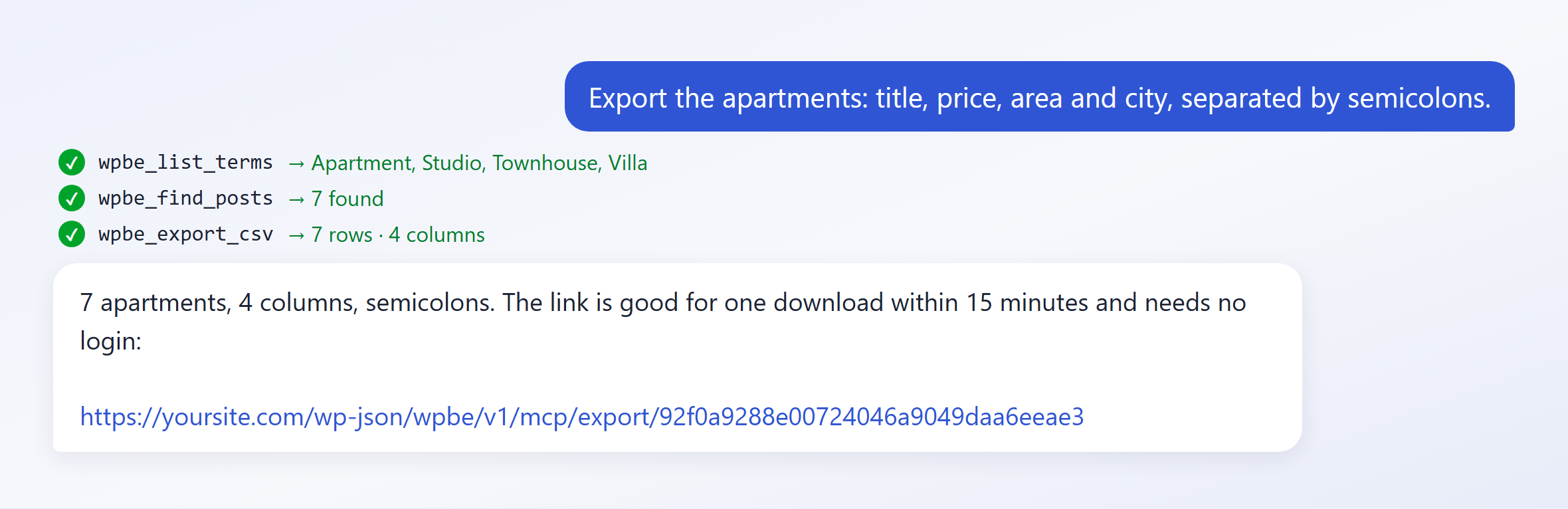
A CSV of whatever you just found, with the columns you want in the order you want them, and the separator your spreadsheet expects. Export the apartments: title, price, area and city, separated by semicolons. It is built by the same code as the Export tab.
Trash and restore
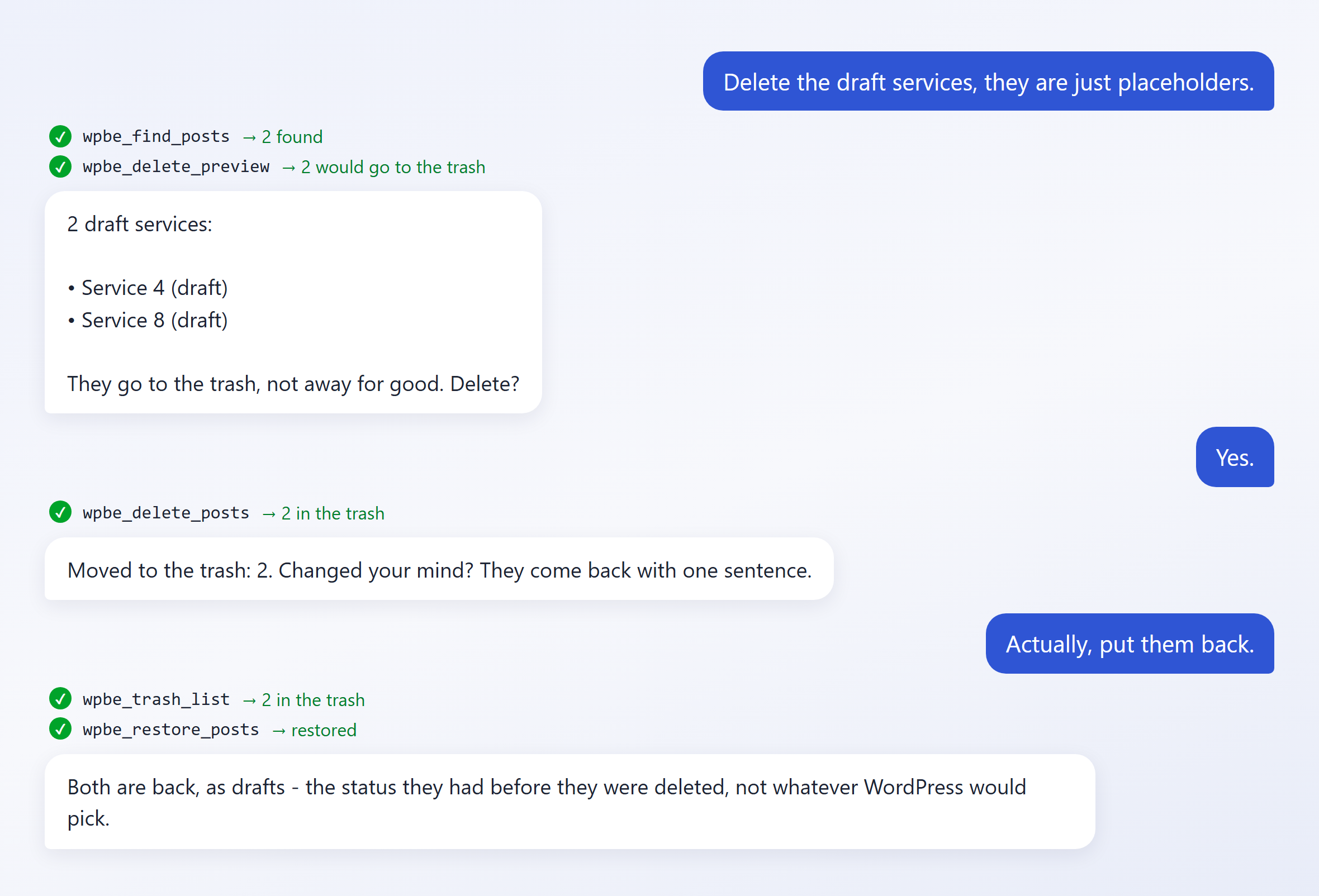
Delete the draft services.Actually, put them back. Deleting goes to the trash, never further, and restoring puts each post back with the status it had — not whatever WordPress would pick.
Tell it once how you like things
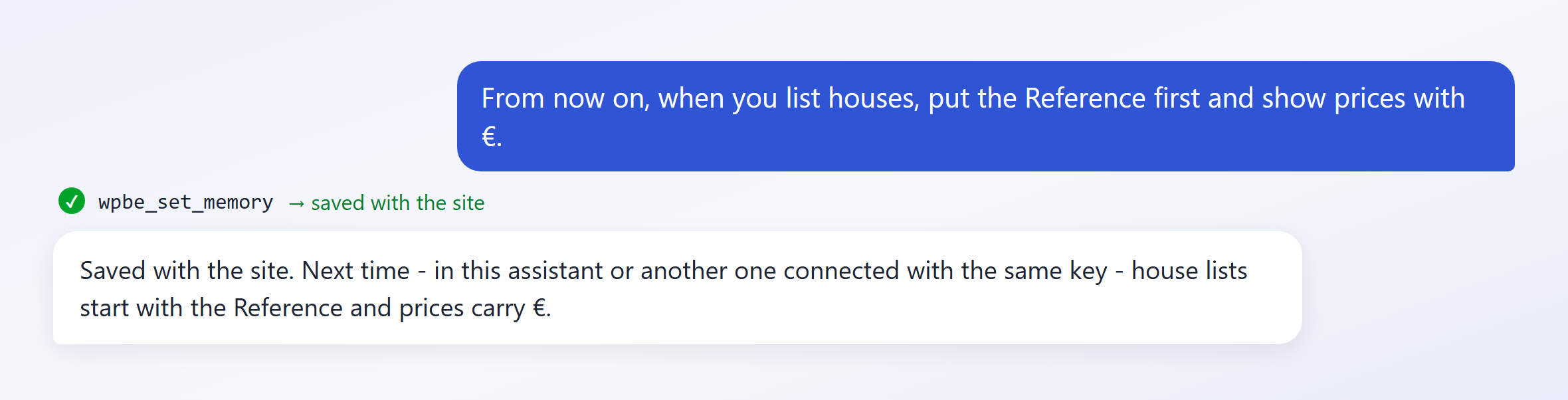
Say it once — From now on, put the Reference first when you list houses — and the assistant saves it with your site. The next conversation, in the same assistant or another one connected with the same key, starts from it without being told again.
These notes describe how you want things shown and done. They never override a preview or a confirmation: an instruction saved last month can't make a bulk edit skip its preview today.
What a WordPress MCP server is, briefly
Model Context Protocol is an open standard for connecting AI assistants to software they don't own. It belongs to no single vendor, and WOLF's implementation is tied to none.
What that means for you: you paste one address and one key into your assistant's settings and it can work with your site. Nothing is installed on the assistant's side, nothing is built, and your data doesn't travel through a third party — the assistant talks to your server directly.
Which AI assistants can connect to WordPress
Claude — in the browser, in the desktop app, and in Claude Code
ChatGPT — its custom connectors currently expect a sign-in flow (OAuth) rather than a key in a header, so a direct connection may not be available yet. Some releases offer an API key field; if yours does, the key goes there.
Cursor, Windsurf, Zed and other coding assistants
Your own agent — anything that speaks MCP, including something you wrote yourself
How to connect an AI assistant to your WordPress site
Two pieces of information, both on one screen, and one switch before them.
Switch the MCP server on
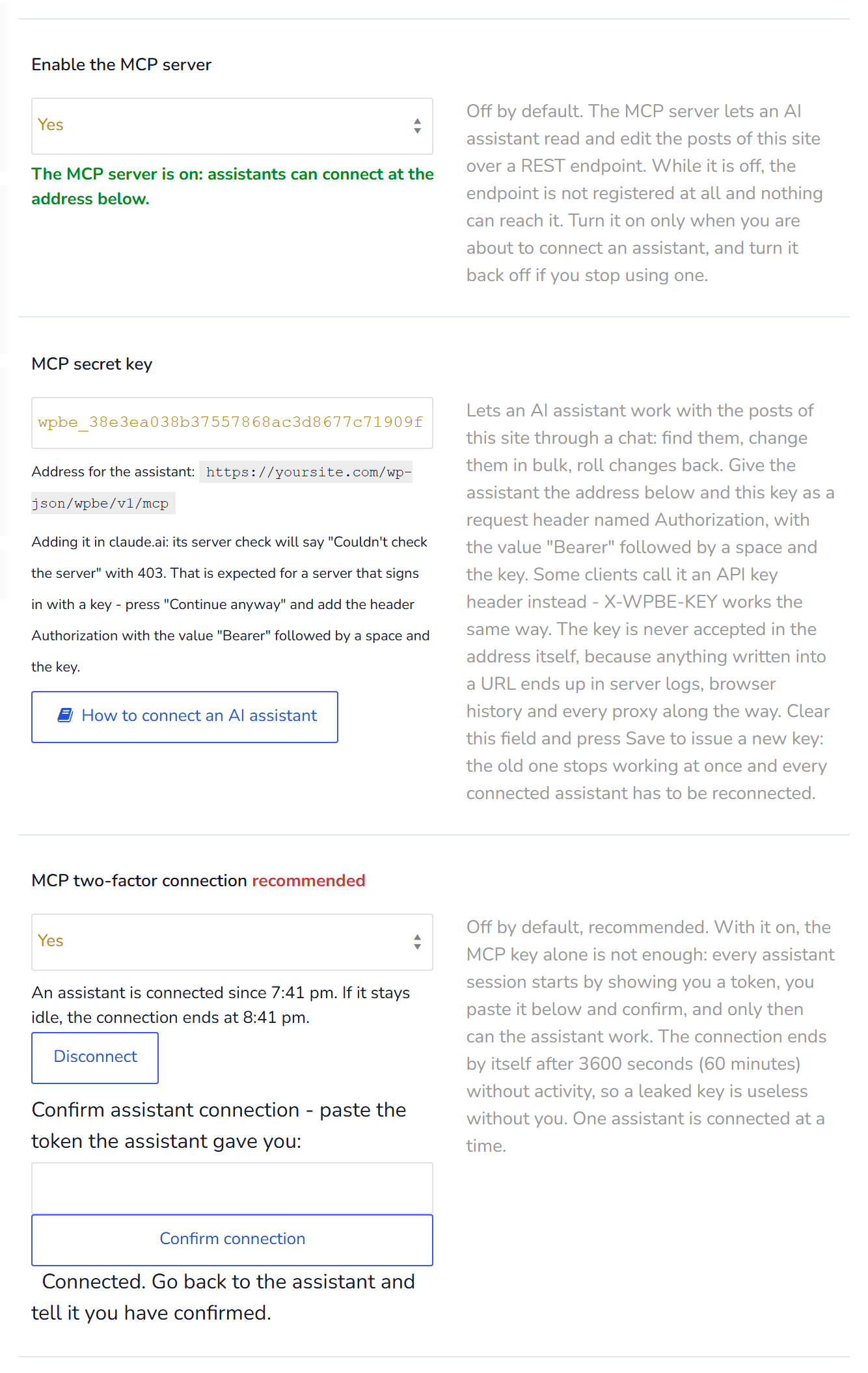
Open WOLF Bulk Editor → Settings, set Enable the MCP server to Yes and press Save. While it is off, the other MCP settings stay hidden — they are kept, just out of the way — and appear the moment you choose Yes.
Find your MCP key and address
On the same screen, under MCP secret key, is the key, and under it the address of your site's endpoint, something like https://yoursite.com/wp-json/wpbe/v1/mcp.
The MCP mark in the header
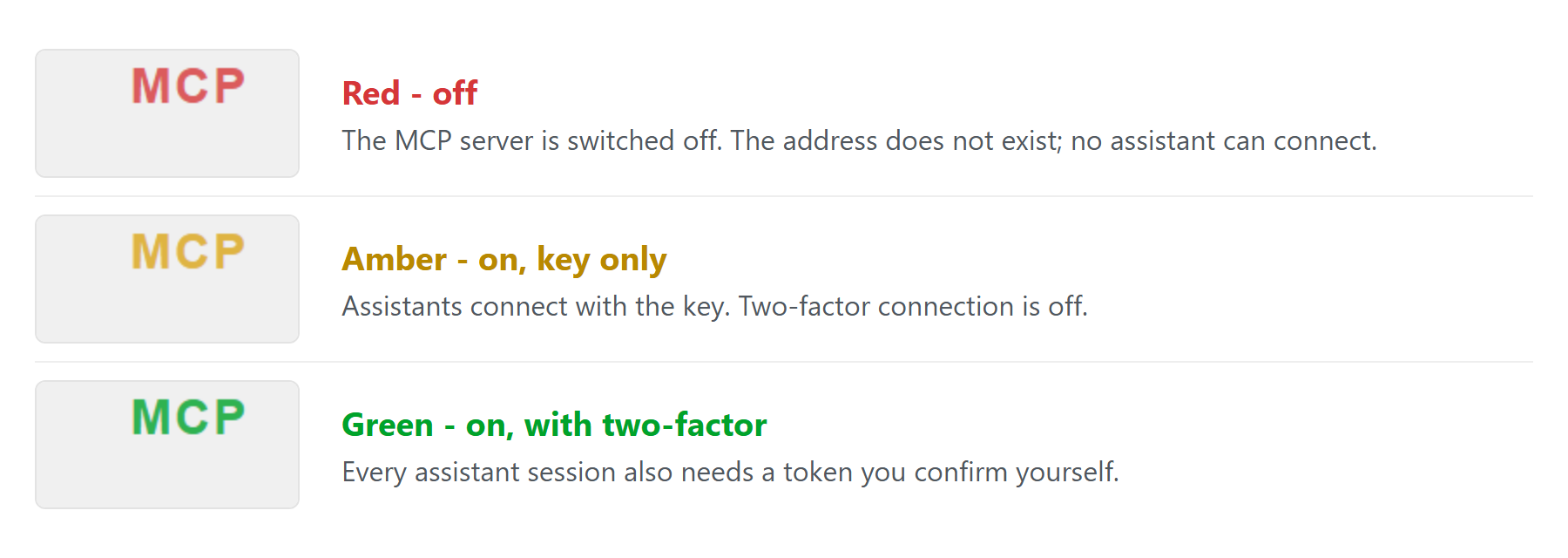
The WOLF header carries an MCP mark that tells you the state at a glance, on every screen of the plugin: red while the server is off, amber when it is on with the key alone, green when two-factor connection is on as well. Hover it for the same in words; click it for this page.
Connect Claude to your WordPress site
In Claude: Settings → Connectors → Add custom connector. Paste the address.
Claude checks a new server before saving it, without the key. WOLF answers that check with 403 on purpose — a server that signs in with a key says nothing to a visitor without one — so Claude shows "Couldn't check the server". That is expected. Press Continue anyway, then add a request header:
Header name: Authorization
Value: Bearer, a space, then your key
Some clients call it an API key header instead. WOLF also accepts the key in a header named X-WPBE-KEY, which works the same way.
In Claude Code it's one line:
claude mcp add --transport http wolf https://yoursite.com/wp-json/wpbe/v1/mcp \
  --header "Authorization: Bearer YOUR_KEY"
Other clients word it differently but want the same two things: the address, and a header carrying the key.
Claude asks before using each tool for the first time
The first time the assistant reaches for a tool, Claude asks whether to allow it: once, always, or not at all. It asks per tool, so a new question can appear in the middle of a conversation. This is Claude's own safeguard, not WOLF's.
To stop the questions for tools that only read, and keep them for tools that change things, open the connector in Claude's settings. The tools are grouped into reading and writing, and each group can be set to Always allow, Needs approval or Blocked. A sensible start is reading on Always allow and writing on Needs approval.
Why the key never goes in the address
Some integrations let you paste a URL with the key inside it. WOLF refuses those. Anything written into a URL ends up in your server's access log, in browser history, in the Referer header when someone follows a link out, and in every proxy along the way. A header appears in none of them.
Lost the key? Clear the field, press Save, and WOLF issues a new one. The old key stops working at once and every connected assistant has to be reconnected.
MCP two-factor connection
The key lives in your assistant's settings, and settings leak: a screenshot shared with support, a config file copied between machines, a stolen laptop. Whoever has the key can do what your assistant can do.
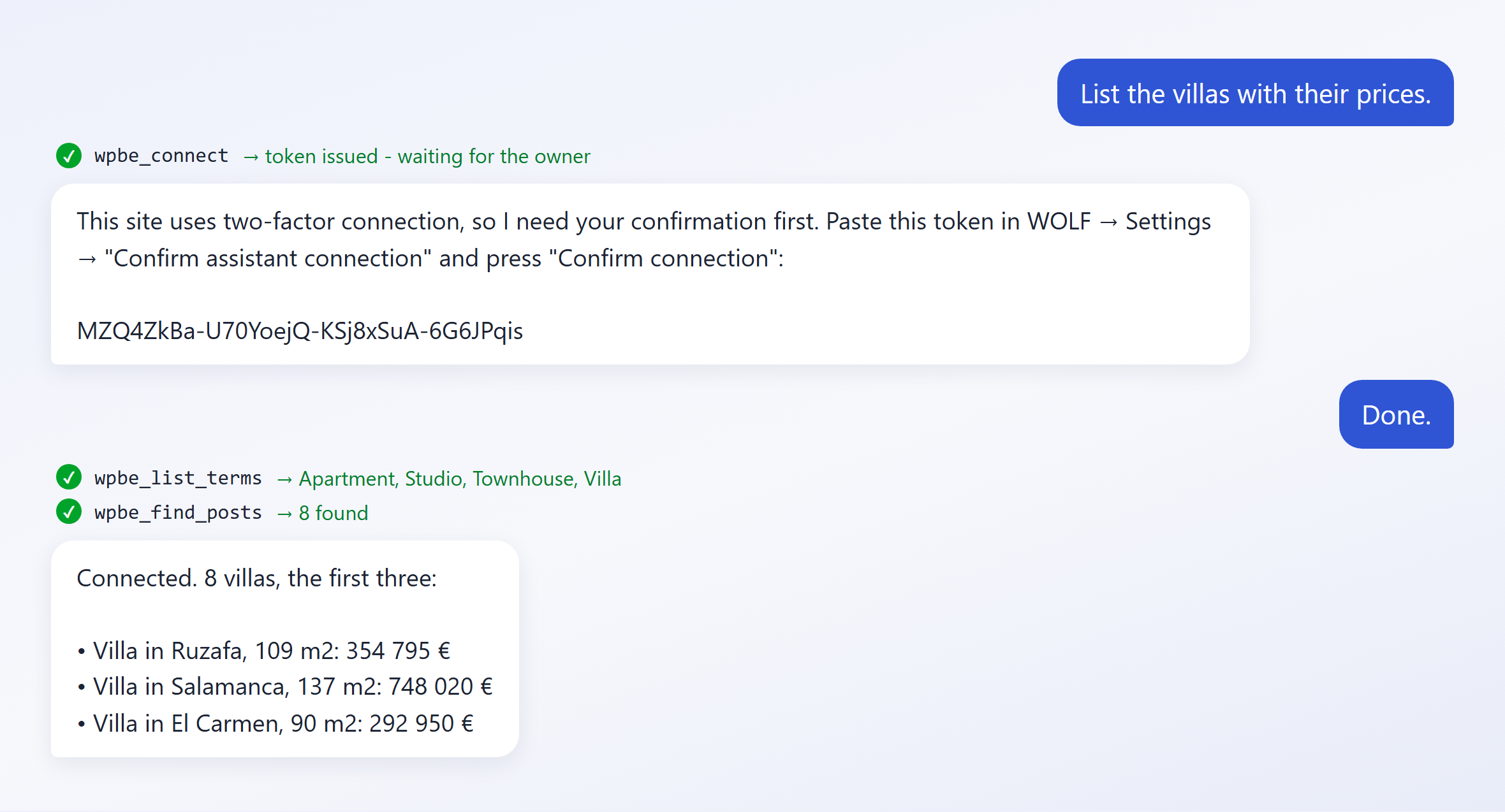
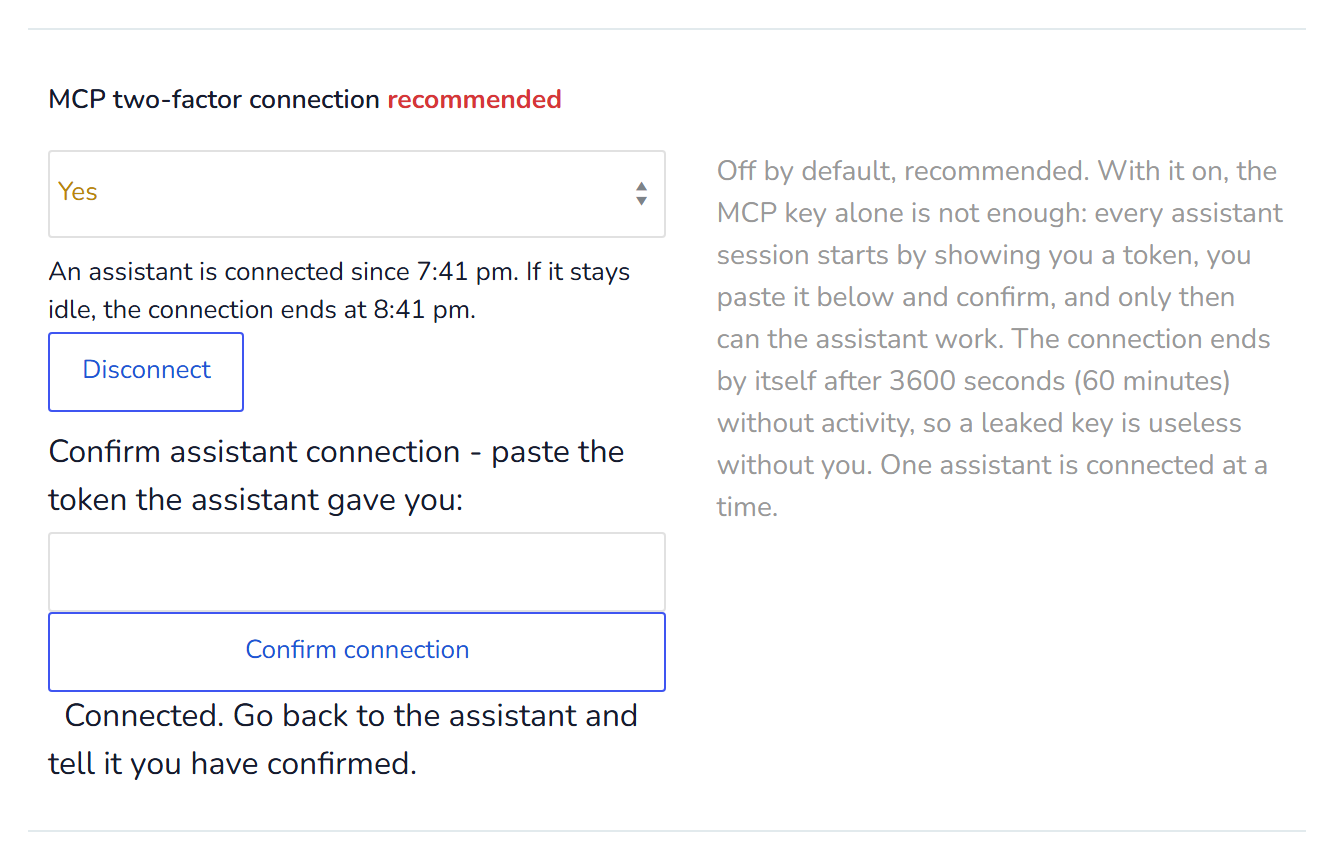
MCP two-factor connection closes that gap. Switch it on under MCP two-factor connection in the same settings screen and the key only lets an assistant ask for a connection. To actually work, it needs a token that you confirm yourself:
You start a conversation. The assistant asks the site for a token and shows it to you.
You paste it into Confirm assistant connection in the WOLF settings and press Confirm connection. Only a logged-in administrator can do this.
You tell the assistant it's done, and it works as usual, sending the token with every request.
The connection closes by itself after an hour without a single request, and there is a Disconnect button next to it for when you're finished. Only one assistant is connected at a time: confirming a new one ends the previous one, so two agents never edit the same posts at once.
A leaked key on its own is then useless. The token can't be confirmed without logging into your admin, and the token of a running session lives only in your own conversation.
MCP access for editors and authors
The site-wide key is the administrator's. When someone else on the team should work through an assistant too, don't give them that key — give them their own.
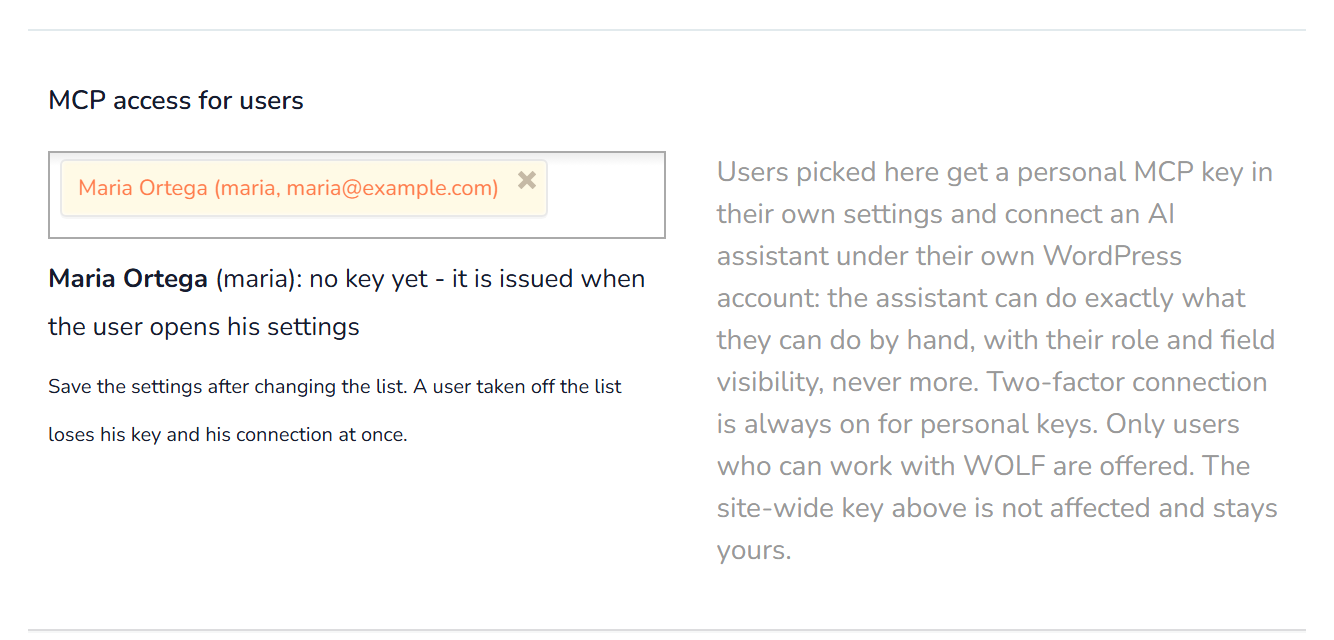
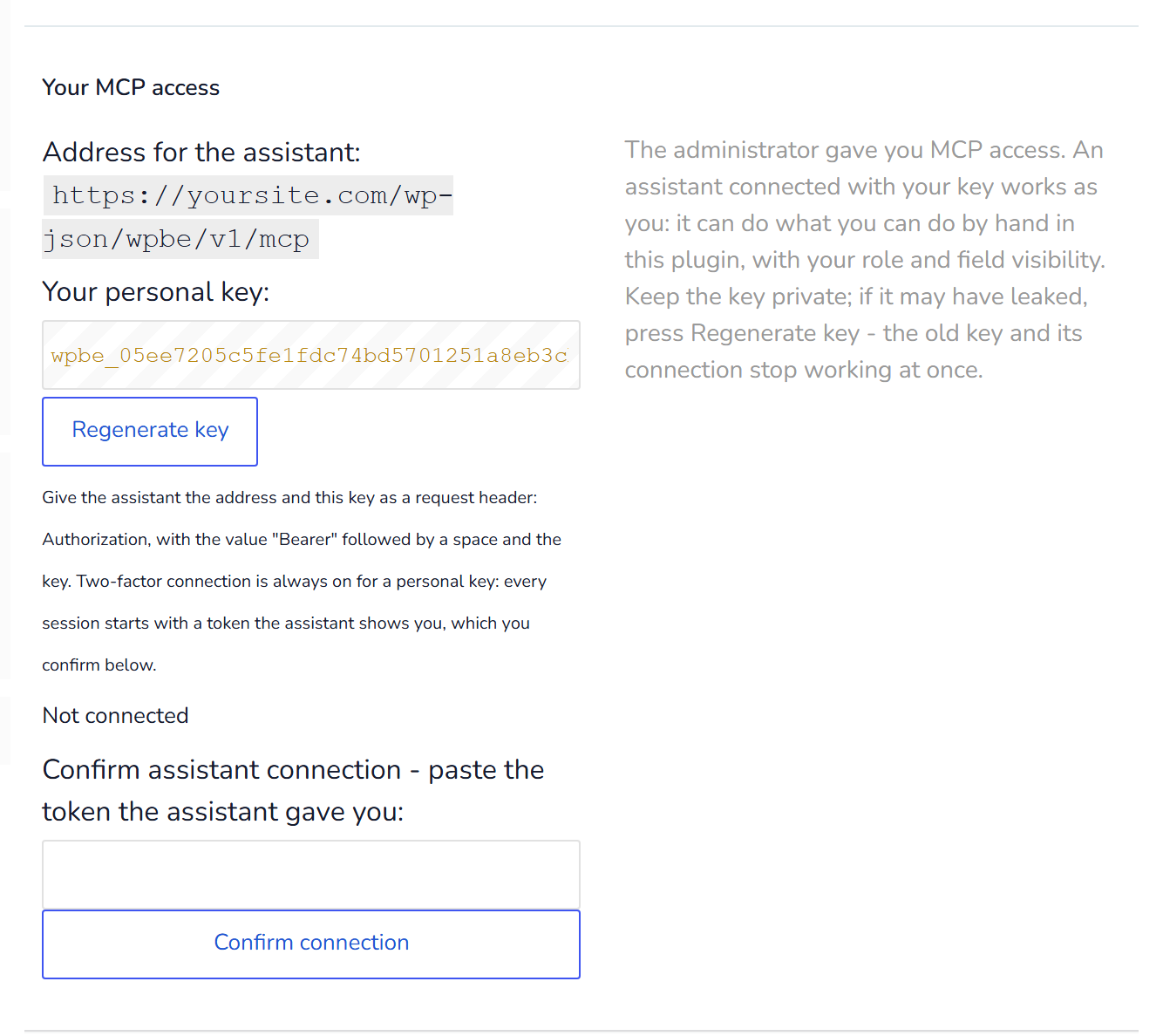
Under MCP access for users pick the people, by name, login or e-mail, and save. Each of them finds Your MCP access in their own WOLF settings: the address, a personal key and a Regenerate key button. Only users who can work with WOLF are offered.
An assistant connected with a personal key works as that person: it can do exactly what they can do by hand in WOLF, with their role and their field visibility, never more. An editor who can't touch prices by hand can't touch them through a chat either. Two-factor connection is always on for personal keys, and each person confirms their own sessions. Taking someone off the list removes their key and ends their connection at once; your own key is not affected.
Every change made this way lands in History under that person's name, so you always know who asked for what.
Examples: managing WordPress content by chat
These are real exchanges with a test site — a car dealer and estate agent with cars, houses, blog posts, pages and services. The answers are what WOLF returned.
Bulk edit with a preview, then a rollback
Raise the price of every villa by 5%, but show me first.
The assistant finds the villas through the filter, shows the old and new price of each before anything is written, and asks. After the yes, the operation goes into History — and if you change your mind, one sentence puts every price back exactly as it was.
One post, one field
Rename the house RE-0024 to "Apartment in Benimaclet, renovated, 101 m2".
Found by its reference number — a meta field — and changed. The previous title stays in History.
A draft blog post with a featured image
Write a draft blog post "Five things to check before a test drive" in Guides, with the white city hatchback photo as its image.
The assistant finds the category and the photo, shows the post before creating it, and creates it as a draft.
Photos from your laptop
I have photos of a new apartment on my laptop.
Delete, then bring back
Delete the draft services, they are just placeholders.Actually, put them back.
Export a selection to CSV
Export the apartments: title, price, area and city, separated by semicolons.
You get a download link that works for one download within fifteen minutes and needs no login, so you can forward it or open it on your phone.
A standing note
How WOLF keeps you from breaking your site
An assistant with write access to a live site is a real risk. The safeguards are structural rather than advisory.
Nothing is written without a preview
Before any bulk change you see the old value and the new one for a sample of posts, how many are affected, and what the operation cannot touch. Nothing has been written at that point. The same goes for creating a post and for deleting: you see what would be made or removed first.
A count you have to confirm
A write never accepts a filter. It accepts a selection that has already been run, whose exact size you were told, and refuses to proceed unless that number is confirmed. A filter silently widening to every post of the type cannot happen — and when a selection does hold the whole post type, the assistant is told to say so before writing.
Things that are refused rather than attempted
Fields that decide who owns a post or what it is — the author and the ID. They are changed in wp-admin by a person, not through an API key.
Fields a post type doesn't have. Nothing is written, and the assistant is told which types the field belongs to.
The key in the address. Refused every time, see above.
Every bulk edit lands in your History
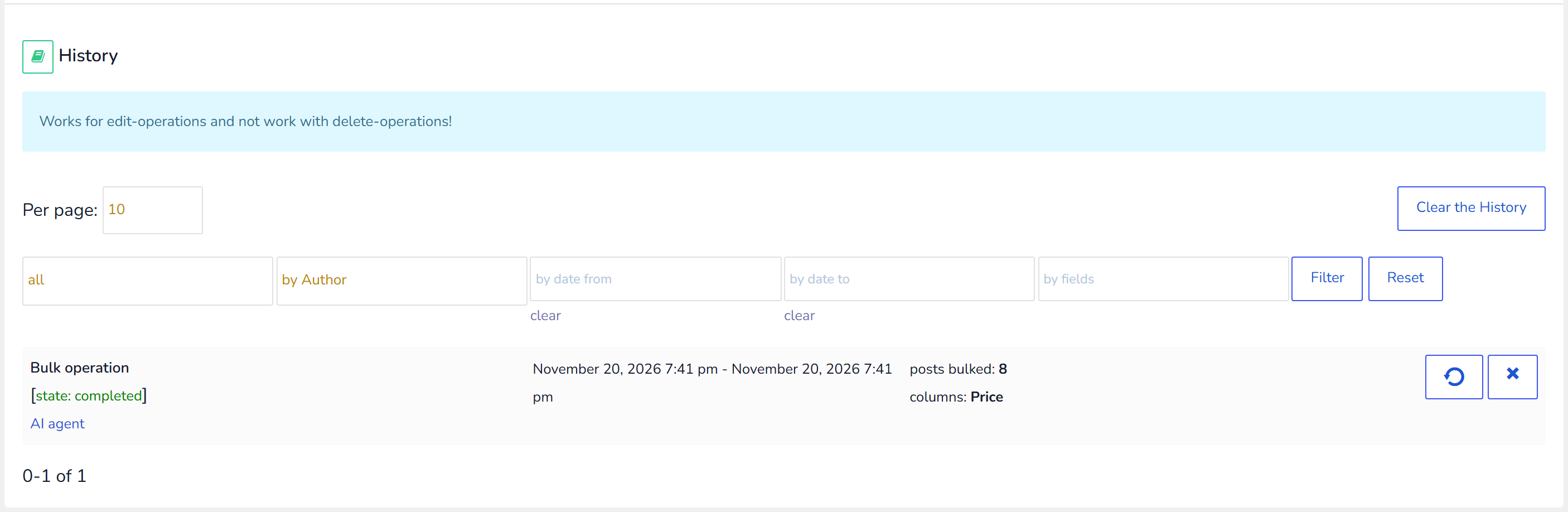
Every change appears in WOLF's History tab beside your manual edits, marked AI agent so you can tell them apart. One click puts it back, and History stores the actual previous value of every field, so a rollback restores exactly what was there.
Worth knowing: undo a percentage change with the rollback, not with the opposite percentage. Up 20% then down 20% doesn't return you to where you started, because the second percentage is calculated from the new value. Deleting is the one exception: a deleted post has no previous value to record, so the trash is the way back, not the rollback button.
Free and paid: what the free version allows
The MCP server is in both versions. Reading is unrestricted in both: finding posts, reading any field, the media library, taxonomies, History and the CSV export work the same whether you paid or not.
The free version limits writing, in two ways.
Which fields can be edited
The same fields that are open on the free plugin screen: the title, content, status, date, featured image, menu order, password and the sticky flag, categories and the first taxonomy of a post type, and the first two meta fields. Other fields can't be changed through the connection — not in bulk and not one post at a time. If you ask for one of those, the assistant says plainly that it needs the paid version, or can be edited by hand on the plugin screen, instead of pretending to work.
How many posts per half hour
Up to 100 posts every 30 minutes.
It isn't a gate that slams shut and opens again on the half hour. The allowance trickles back: one more post every eighteen seconds. Spend it all, walk away for five minutes and there are sixteen waiting. Half an hour and you're back to a full hundred. New posts and featured images draw on the same allowance.
Undoing something is always free. A rollback never counts against the allowance, so you're never stuck with a change you regret and no room to reverse it.
Ask for more than the allowance holds and nothing is refused: the job runs in portions. You see how many posts were written, how many are left, and how long until the next batch, and you say "continue" when you're ready. Your selection stays valid for 24 hours. The paid version has no allowance and no field restrictions, and writes the whole job in one go.
How much history is kept
The free version keeps the last two bulk operations of each author. Older ones are removed as new ones arrive, and once a record is gone the change behind it can no longer be rolled back. The paid version keeps the full history.
Handing a long job to your own agent
An assistant in a chat window works only while you're there. It can't wait for an allowance to refill and then carry on — nothing wakes it up.
An agent that runs unattended can. It needs the same two things, the address and the key, and everything described here works identically for it. With two-factor connection on, an unattended agent still needs you once: you confirm its token at the start, and the connection then stays open for as long as it keeps working. If it goes quiet for an hour, the connection closes and needs confirming again.
Multilingual sites
With WPML or Polylang active, the site overview the assistant reads first names the site's languages, so it knows the content is multilingual before it touches anything.
Requirements
WOLF with the MCP server switched on in its settings
HTTPS on your site
WordPress REST API reachable (it is, unless a security plugin blocks it)
An AI client that supports MCP
Common problems and how to fix them
Claude says "Couldn't check the server" with 403
That's expected: Claude checks the address without the key, and WOLF answers a request without a key with 403. Press Continue anyway and add the Authorization header with Bearer, a space and the key.
The connection is refused
First make sure Enable the MCP server is set to Yes and saved — the mark in the WOLF header is red while it isn't, and the address doesn't exist. Then check the key matches the one in settings, that it's prefixed with Bearer and a space, and that the address has no ?key= on the end: keys in the address are rejected by design.
The assistant asks me to confirm a token
MCP two-factor connection is on. Paste the token the assistant shows you into Confirm assistant connection in the WOLF settings and press Confirm connection. If it asks again later, the connection closed after an hour of silence, or another assistant was confirmed since, and a new token is needed.
Claude keeps asking permission for tools
That's Claude's own approval for each tool, and it appears the first time each one is used. Set the reading tools to Always allow in the connector's settings, as described above.
New tools don't appear after an update
Most clients cache the tool list from the moment the connector was added. Ask your assistant what it can do: it reads the live list from the server and can run anything on it, including tools your client hasn't picked up. To refresh the list itself, remove the connector and add it again.
The assistant says a field can't be edited
On the free version, most fields beyond the basic ones are closed — see above. On any version, the author and the ID are never written through a key, and a field that doesn't exist for the post type is refused rather than ignored.
An editor's assistant can't see a post type or a field
A personal key works with that person's role and field visibility. If they can't see it on the WOLF screen, their assistant can't either: change what they may see in the WOLF settings, not in the assistant.
🌸
Shortcodes, hooks, hints - all for WOLF - WordPress Posts Bulk Editor and Manager Professional
Documentation for WOLF
We use cookies to ensure that we give you the best experience on our website. If you continue to use this site we will assume that you are happy with it.

 For extra safety there is MCP two-factor connection. With it on, the key alone is not enough: every assistant session also needs a token that you confirm yourself in the plugin settings, and the session closes on its own after an hour of silence. It is optional, off by default, and recommended. How it works is described below.
 The connection closes by itself after an hour without a single request, and there is a Disconnect button next to it for when you're finished. Only one assistant is connected at a time: confirming a new one ends the previous one, so two agents never edit the same posts at once.
A leaked key on its own is then useless. The token can't be confirmed without logging into your admin, and the token of a running session lives only in your own conversation.
 An assistant connected with a personal key works as that person: it can do exactly what they can do by hand in WOLF, with their role and their field visibility, never more. An editor who can't touch prices by hand can't touch them through a chat either. Two-factor connection is always on for personal keys, and each person confirms their own sessions. Taking someone off the list removes their key and ends their connection at once; your own key is not affected.
 Every change made this way lands in History under that person's name, so you always know who asked for what.
 Worth knowing: undo a percentage change with the rollback, not with the opposite percentage. Up 20% then down 20% doesn't return you to where you started, because the second percentage is calculated from the new value. Deleting is the one exception: a deleted post has no previous value to record, so the trash is the way back, not the rollback button.