How to bulk delete WordPress posts: all posts, by category, date, author or status
WOLF deletes posts the way WordPress itself does: every post you remove goes to the Trash, not out of the database. A wrong filter costs you a visit to Posts → Trash → Restore, not a backup restore. Permanent removal is a separate, deliberate step — emptying the Trash in WordPress — and WOLF never does it for you.
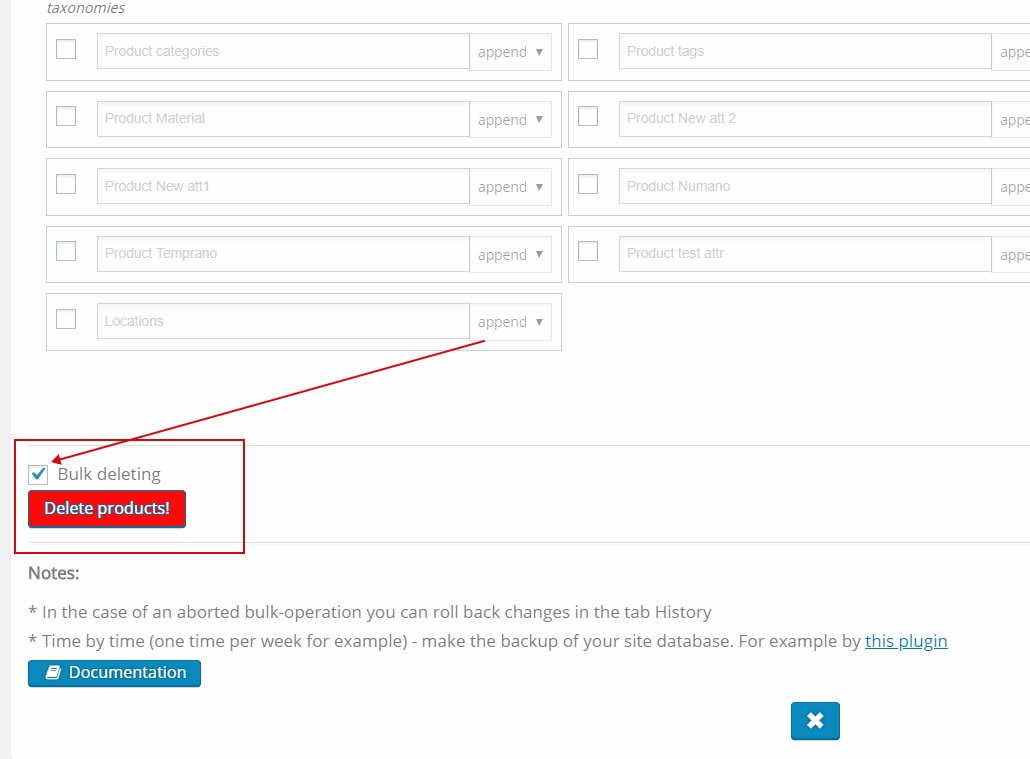
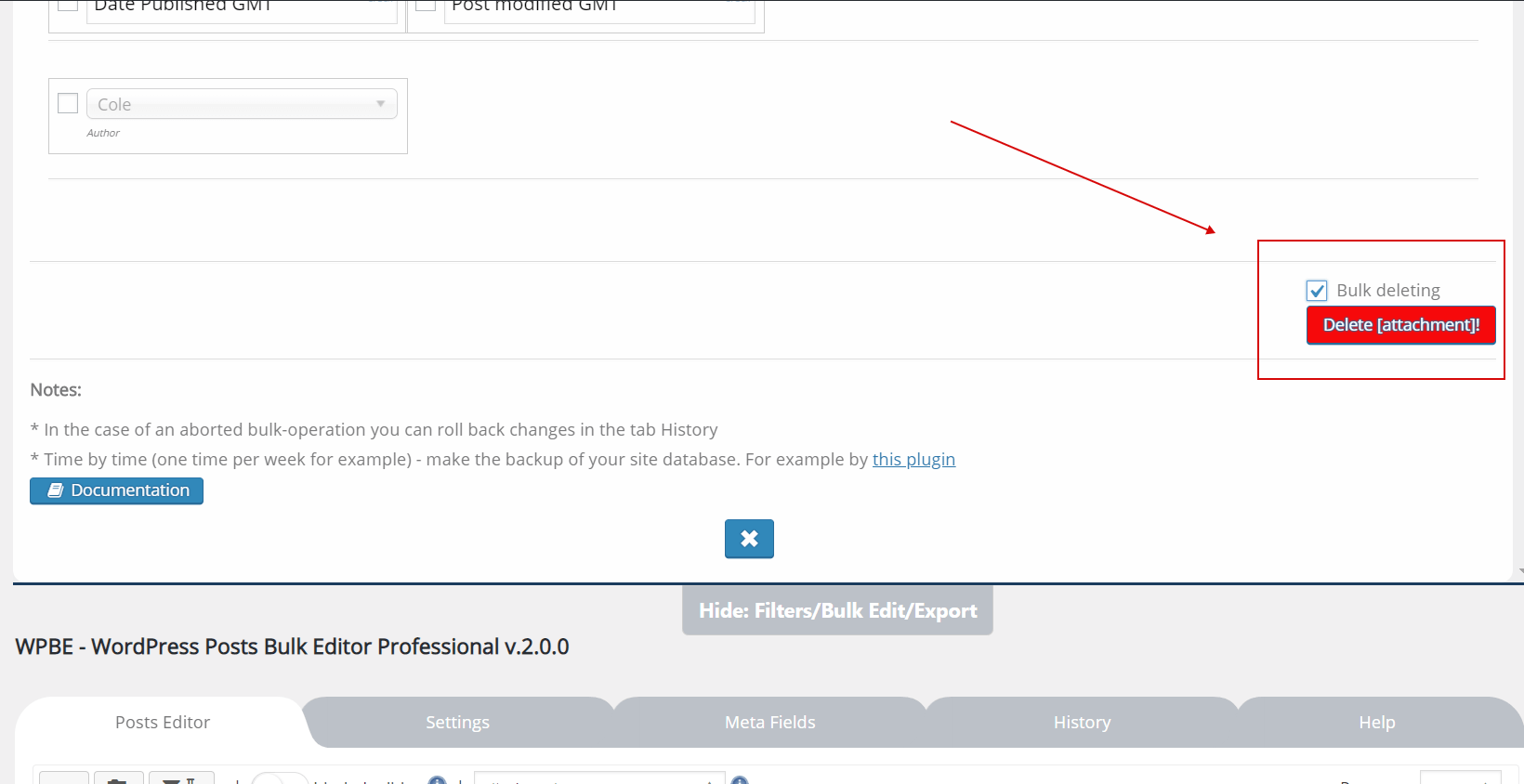
The workflow is the same for every case below: pick the post type on the tools panel, narrow the table down in the Filters tab (or tick the posts by hand), open the Bulk Edit tab, tick the 'Bulk deleting' checkbox and press 'Delete [post]!'. The button names the post type you are working with, and the confirmation names it again.
Which posts the delete applies to
The Bulk Edit tab always shows what it is about to touch — "all the posts on the site", "the filtered posts" or "the selected posts". Selected posts (the checkboxes in the first column) have priority over the filter: if anything is ticked, only the ticked posts are deleted. Reset the selection on the tools panel to fall back to the filtered set, and reset the filter to fall back to everything.
Delete all posts
Do not filter anything and do not tick anything: the Bulk Edit tab reports "all the posts on the site" and the delete goes through every post of the current post type, in portions, with a progress counter. Because the result is only the Trash, this is a reversible operation — but with thousands of posts the Trash view in WordPress becomes slow, so if you are certain, empty it afterwards in reasonable portions.
Delete posts by category or tag
In the Filters tab every taxonomy of the post type has its own drop-down with an operator: OR (any of the chosen terms), AND (all of them) and NOT IN (none of them). Pick the categories or tags, press Filter, check the count in the table, then run the delete. NOT IN is the one to use for "delete everything except these categories".
Delete posts by date range
The Filters tab has a from/to pair for every date column — Date Published, Date Modified and their GMT variants. Set the range, filter, delete. Combined with a status filter this is how old drafts or expired entries are cleared out.
Delete posts by author
Choose the author in the Filters tab, filter, delete. If you would rather keep the content and only change ownership, use the Author field of the Bulk Edit tab on the same filtered set instead.
Delete posts by status
The status drop-down of the Filters tab lists the WordPress statuses — publish, draft, pending, private and scheduled — and the delete works on whichever set you filtered. Posts already in the Trash are not listed in the table at all; they are removed by emptying the Trash in WordPress.
Delete custom post types
Switch the post type on the tools panel and the same table, filters and delete button apply to it: listings, events, portfolio items, job posts, anything registered as a public post type. See bulk editing custom post types for how WOLF picks the types up and how their meta fields become filterable columns — a meta value is often the right criterion for what to delete.
Narrowing by title, content or ID
Text filters for the title, content, excerpt and slug accept LIKE, EXACT, NOT, BEGIN, END and Empty; the ID field accepts lists and ranges such as 23,586,1000-1200. Meta fields you have attached in the Meta Fields tab filter by value as well, including "empty" and "not empty".
What happens to attachments and terms
Trashing a post does not remove its media: featured images and attached files stay in the Media Library, still linked to the trashed post. Categories, tags and custom taxonomy terms are not deleted either — only the post's link to them goes away when the Trash is emptied. If you want the media gone too, that is a separate job in the Media Library.
Undo
Deletion is not recorded in WOLF's History tab — History reverts field edits, not removals. The undo for a bulk delete is the WordPress Trash: wp-admin/edit.php?post_status=trash&post_type=post (change the post type in the URL for custom types), select, Restore. Make a database backup before large runs anyway; it costs a minute and covers the case where the Trash was emptied too early.